A dashboard for Home Assistant
Field
A hardware panel for your house: keys you press, faders you slide, screens you read. Laid out for you, room by room.
- Open in Home Assistant (opens in a new tab)Download Field from the Marketplace, or HACS before Home Assistant 2026.11.
- How it installsThree steps, all in Home Assistant. No terminal, no YAML.
It runs live on a demo house: press, slide and scroll it.
Installed in three steps
All of it in Home Assistant 2026.5 or newer, in your browser, as an administrator. Nothing to install on your computer, no token to copy, and it never changes a dashboard you already have.
Prefer a terminal, or deploying from CI? Deploy from the command line instead. Pick one way: both at once would load Field twice.
- Download itOpen Field in your Home Assistant's Marketplace and press Download. Before Home Assistant 2026.11 it opens in HACS, which you install first. If it asks, add it as a custom repository of type Dashboard.
- Reload the tabSo Home Assistant loads what it just installed.
- Add the dashboardSettings, Dashboards, Add dashboard: pick Field under Community dashboards and press Create. It opens from the sidebar, laid out by area.
How it looks
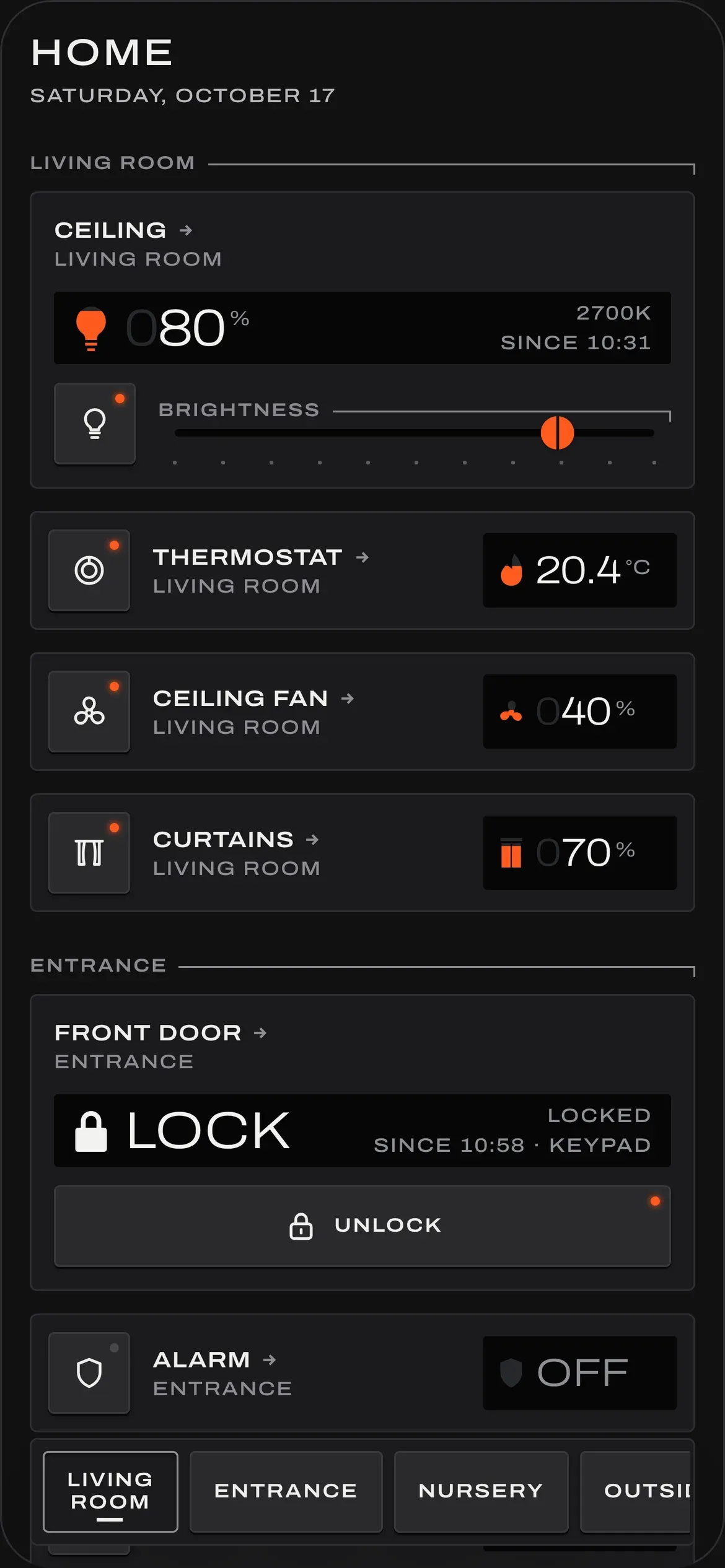
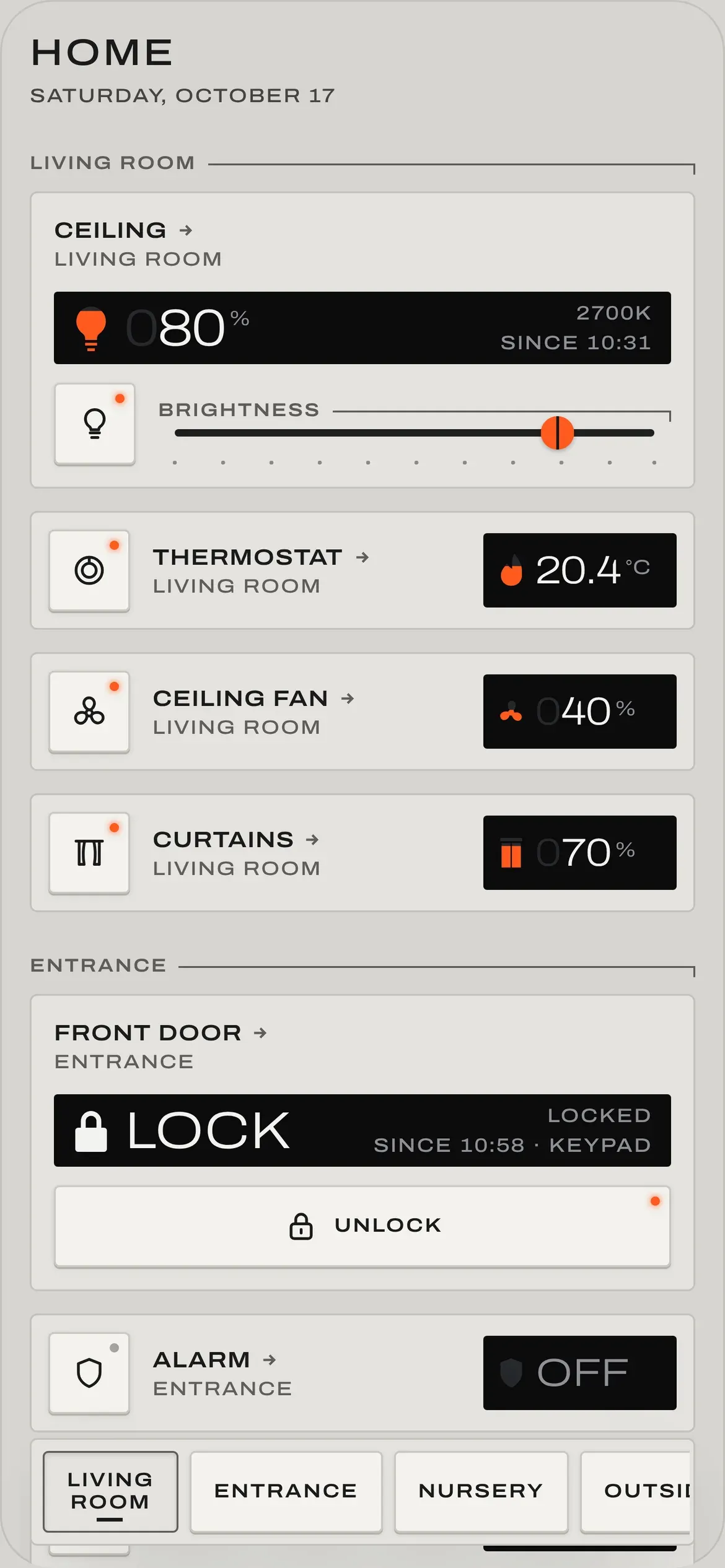
Section titled “How it looks”Each module is a plate with a key you press, a fader you slide and an always-dark screen you read, with printed labels in capitals. A small orange mark shows what a control sets. Field opens more in a panel from the module’s name.
It comes in two finishes, light grey Alloy and Black, and follows Home Assistant’s light or dark mode by default. It reads the same on a phone in your hand and a wall panel across the room: a module never changes height when its state changes. The tablet below is live, on a demo house.
Tablet layout. It is 1180 px wide, so it shows on a larger screen. Open it in Storybook
What it draws
Section titled “What it draws”Lights, climate, covers, switches and input_boolean modes, sensors, the weather, alarm panels, locks, humidifiers,
fans, sound machines, Owlet socks and guest Wi-Fi. An entity without a card isn’t drawn. Every card in every state is
in Storybook, and Warnings and alarms shows how Field tells you
something is wrong.
Settings
Section titled “Settings”Open the dashboard and press Edit dashboard (the pencil, or ⋮). Its dialog opens on the dashboard’s configuration in YAML; add to it and save:
# Field's dashboard, as Add dashboard → Field saves it, plus the options you can add.strategy: type: custom:field-dashboard viewing: far # near (default) for a phone or tablet, far for a wall panel finish: black # home-assistant (default), auto, alloy or black| Key | What it does |
|---|---|
viewing |
near (default): a phone or tablet in the hand. far: a wall panel read from across the room. |
finish |
home-assistant (default): Alloy in Home Assistant’s light mode, Black in its dark mode. auto follows the device; alloy and black hold one. |
title |
The title the page prints in its header. Home by default. |
To lay out your own cards and rows instead, take control of the dashboard (the same dialog’s ⋮ → Take control), which keeps Field’s card as it is now, and edit it; Lay it out in YAML shows how. A dashboard you take control of no longer lays itself out.
From a terminal or CI, @dashhaus/field and the deploy tool create Field’s dashboard and one of your own rows in one
command: Deploy from the command line. Pick one way: each loads its own copy of Field.
If something goes wrong
Section titled “If something goes wrong”If Add dashboard has no Field under Community dashboards, or the dashboard says Custom element doesn't exist
or Timeout waiting for strategy element, Home Assistant hasn’t loaded Field yet. Reload the tab. If that doesn’t help,
open Settings → Dashboards → ⋮ → Resources and check there’s a JavaScript module at
/hacsfiles/field-dashboard/field-dashboard.js.
Community dashboards are listed from Home Assistant 2026.5. On an older version, or one that keeps its dashboards in
YAML, create a dashboard yourself and give it strategy: { type: custom:field-dashboard } as its whole configuration.
Update
Section titled “Update”The Marketplace (or HACS) tells you when there’s a new version of Field. Update it there, then reload the tab. Your dashboard follows; Release notes say what changed and anything to do first.
Ask an assistant to do it
Section titled “Ask an assistant to do it”An assistant that can use your browser can follow this page on its own. Give it the page’s address, or this:
Install the Field dashboard in my Home Assistant. I'm signed in as an administrator.1. Open https://my.home-assistant.io/redirect/hacs_repository/?owner=Krystosterone&repository=field-dashboard&category=plugin and download Field (type: Dashboard; add it as a custom repository if asked). Keep the defaults.2. Reload the browser tab.3. Settings → Dashboards → Add dashboard → under Community dashboards, pick "Field" → Create.4. Open the new Field dashboard from the sidebar and check it draws. Don't change any other dashboard, and never ask me for a password or token.